Find the answers to your questions
Most popular
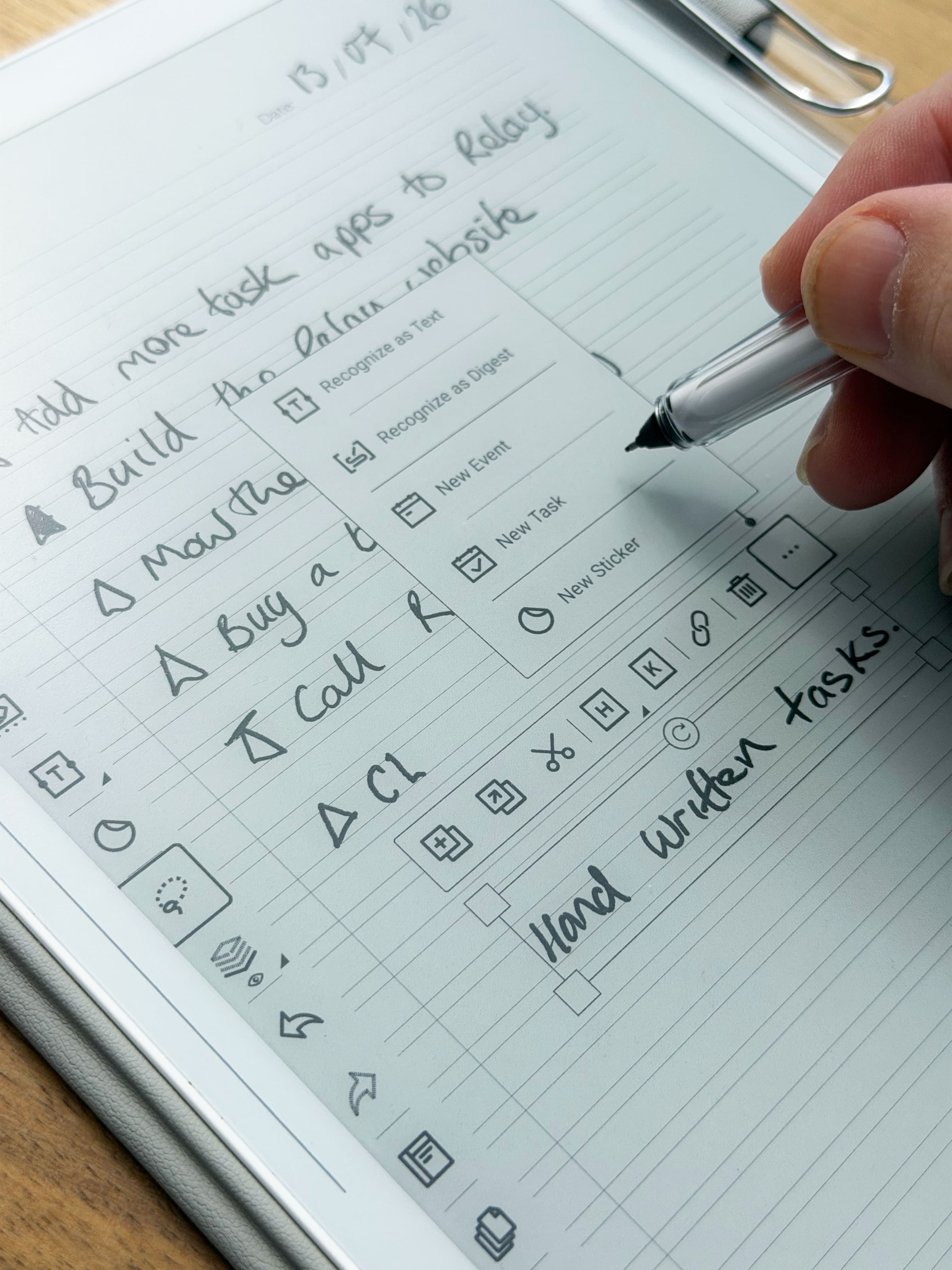
It's a desktop companion for your Supernote. It mirrors the To-Do area of your Supernote (the same to-dos and lists you see in the Supernote Partner app and on your device), keeps them two-way in sync with your Supernote account and device, and can hand those to-dos off to task apps you already use — Todoist, Apple Reminders, Things 3, TickTick, Google Tasks, Asana and more. In short: it brings your Supernote to-dos onto your Mac and lets you push them out to other apps.
Relay pushes your Supernote to-dos to six task apps, and you can connect as many of them as you like:
 Todoist — connect with your Todoist API token
 Apple Reminders — uses your Mac's built-in Reminders permission
 Things 3 — talks directly to the Things app on your Mac
 TickTick — one-click sign-in through your browser
 Google Tasks — sign in with Google
 Asana — sign in with Asana
So if you've been searching for a way to sync your Supernote with Todoist, export Supernote tasks to Apple Reminders, send handwritten to-dos to Things 3 or TickTick, push Supernote to-dos into Asana, or set up a Supernote Google Tasks integration — this is it. Each app has its own "How do I connect…" guide in this topic.
More apps are coming. Relay is built so new task apps can be added over time, and these are next on the list:
 Obsidian
 Notion
 Trello
If the app you use isn't here yet — or you'd like one of these sooner — suggest it through the contact form. Requests genuinely shape what gets added first.
No. It's a separate companion app that signs in with your own Supernote account and reads/writes your to-dos through Supernote's cloud, the same way the official apps do. It works alongside the official Supernote Partner app and your device rather than replacing them. Its main focus is to extend the usability of your tasks into your own ways of working.
Sign in with your normal Supernote account. The app shows Supernote's login page right inside the window. You type your email, click Send code, and Supernote emails you a one-time verification code. You enter that code and click Login. There's no separate password to set up in this app, and the app never sees or stores your password.
Two different things. "Sync" keeps your to-dos in step between your Supernote device, the cloud, and this app — always on, both ways. "Push" hands your open to-dos OUT to a task app you already use (Todoist, Apple Reminders, or Google Tasks). Pushing is one-way and one-time. You set it up under Settings → Task apps.
Yes. Any task that started life as a handwritten note shows a small document icon next to it. Click that icon and a preview panel opens showing the original page, converted to a clean PDF. There's nothing to set up per-task — if the icon is there, the note is linkable.
Two separate places. (1) The app keeps a private, encrypted working copy of every note it has fetched inside its own hidden support folder (~/Library/Application Support/supernote-todo-desktop/notes/). This cache powers the instant preview, is scrambled at rest so other apps can't read your handwriting, and you don't manage it by hand. (2) A plain, readable PDF copy is written to ~/Documents/Supernote only when you push a note-linked task to a third-party app — that's the copy the task's link points at. So: previewing = hidden encrypted cache; pushing = readable copy in Documents/Supernote.
That means you've connected apps but turned the "Push tasks" toggle off on every one of them (in the Task apps section). Your push schedule is fine, but there's no enabled destination, so nothing goes out. Re-enable an app to resume. ("Connect apps" instead means nothing is connected yet.)
---
## Supernote tablet setup Three things, all on the tablet: 1. Be signed in to your Supernote account. Go to Settings → My Account and log in (email or phone plus the verification code). Relay and the Partner app sign in to this same account — that's how everyone sees the same to-dos. 2. Turn on to-do syncing. Go to Settings → My Account → Data Sync and make sure it's on. This is the switch that sends your to-dos to Supernote's cloud — it's separate from file syncing. On recent firmware it's on by default, but if your device is older (or was set up a while ago) it may still be off, and that's the most common reason to-dos don't appear. 3. Choose Supernote Cloud as your drive. Go to Settings → Drive (called Synchronization on older firmware) and select Supernote Cloud (first time, you'll also pick a server location). To-dos only travel through Supernote's own cloud — Dropbox, Google Drive and OneDrive sync your files, not your to-dos, so with a third-party drive selected your to-dos won't reach Relay or the Partner app. Then just have the tablet on any Wi-Fi with internet. It does not need to be on the same network as your Mac — to-dos go through the cloud. A change made on the tablet arrives after its next sync (swipe down from the top and tap the Sync icon to trigger one right away).
Browse by topic
Don’t have a Supernote yet?
Get the tablet Relay was made for.
Write your to-dos by hand on a Supernote, then let Relay push them into the task app you already use. I write on mine every day — here are the two to look at.