
Modes
How Relay works with your task apps. You have two choices — push or sync. Choose the mode that best suits how you work.
You’ll find both in Relay under Settings → Modes, and you can switch whenever you like.
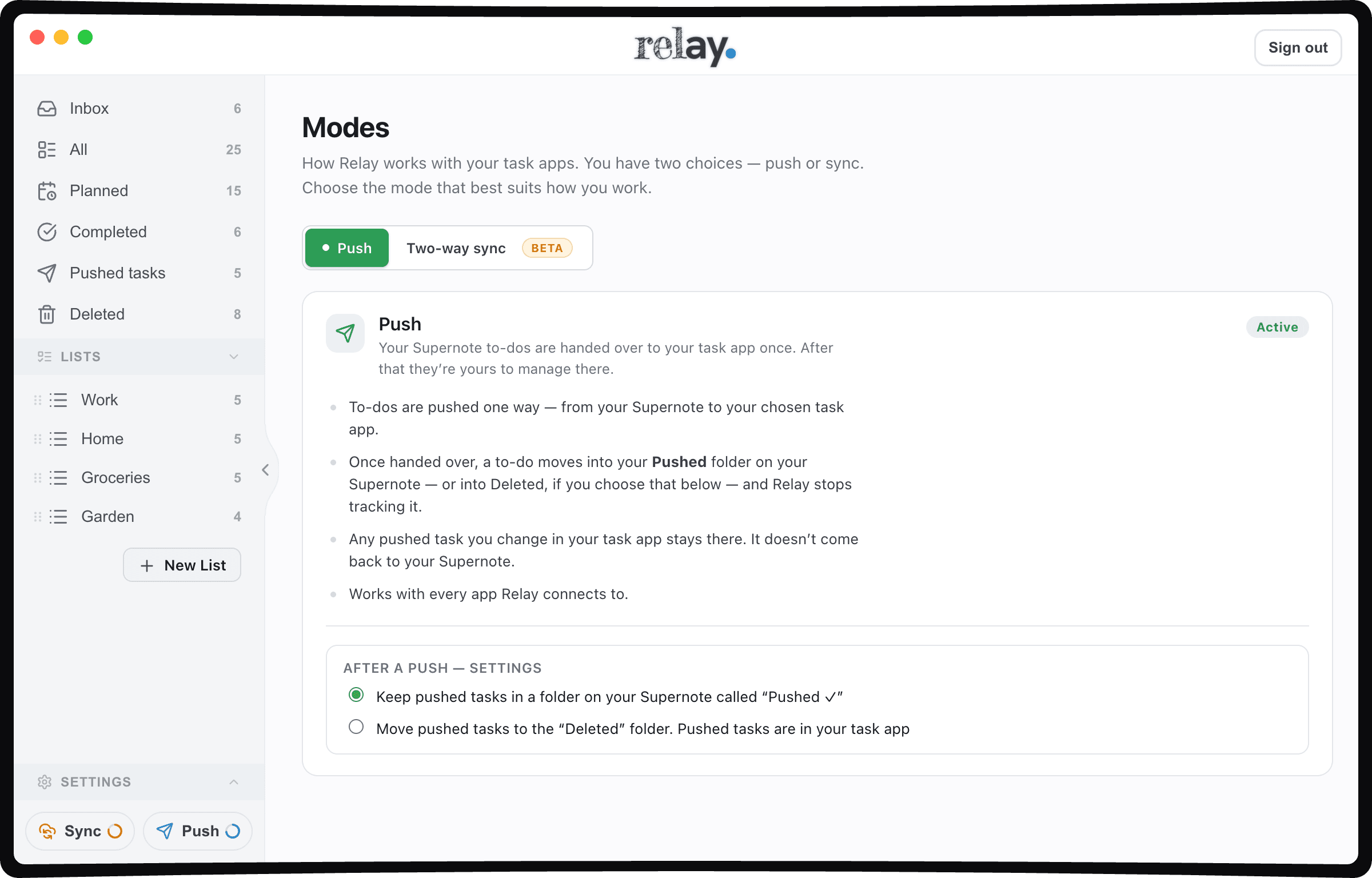
Your Supernote to-dos are handed over to your task app once. After that they’re yours to manage there.
to your app of choosing (with more coming)
Push
- To-dos are pushed one way — from your Supernote to your chosen task app.
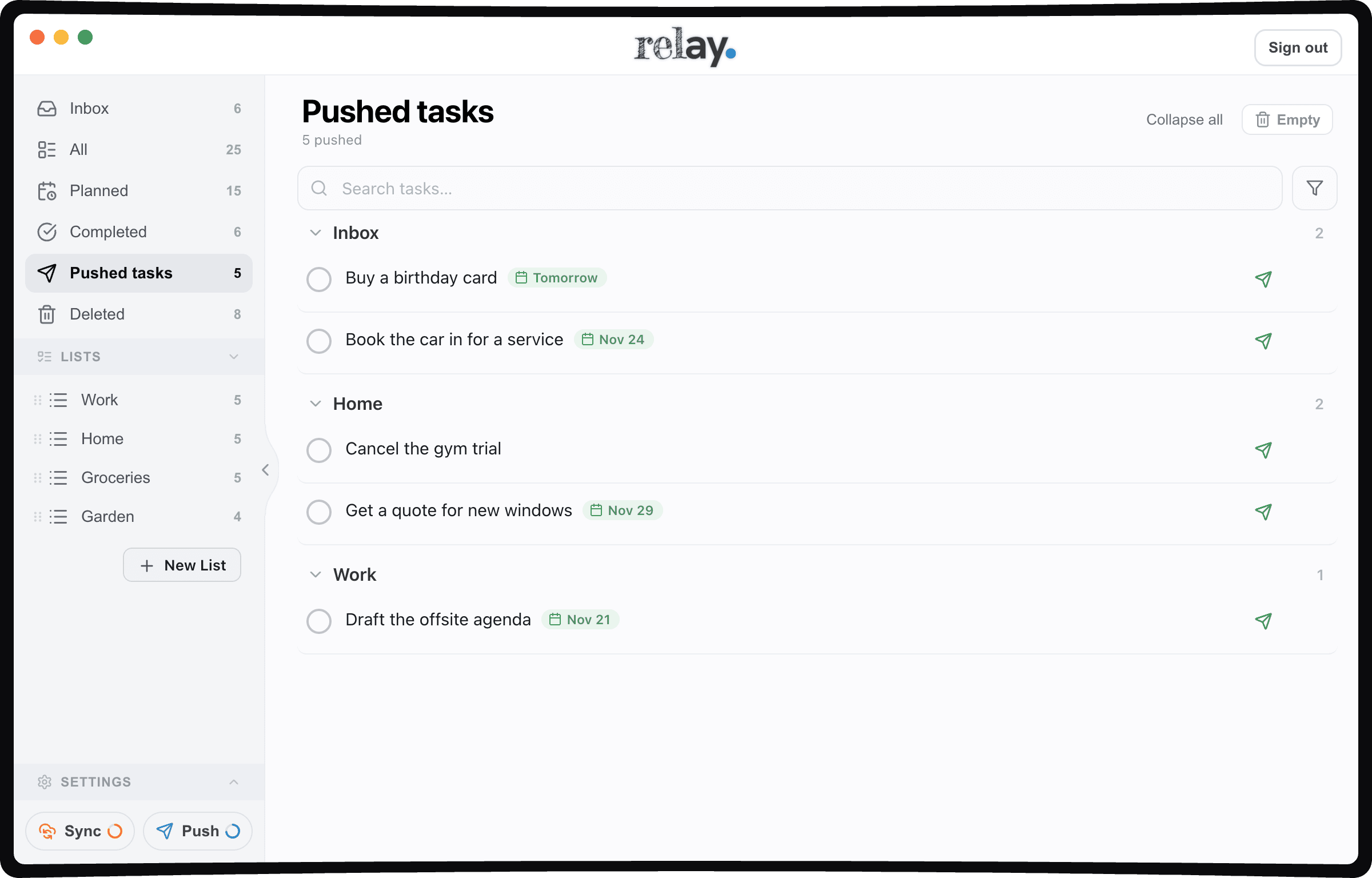
- Once handed over, a to-do is filed away on your Supernote — into a “Pushed ✓” folder, or into Relay’s Deleted section if you prefer (the “After a push” setting) — and Relay stops tracking it.
- Any pushed task you change in your task app stays there. It doesn’t come back to your Supernote.
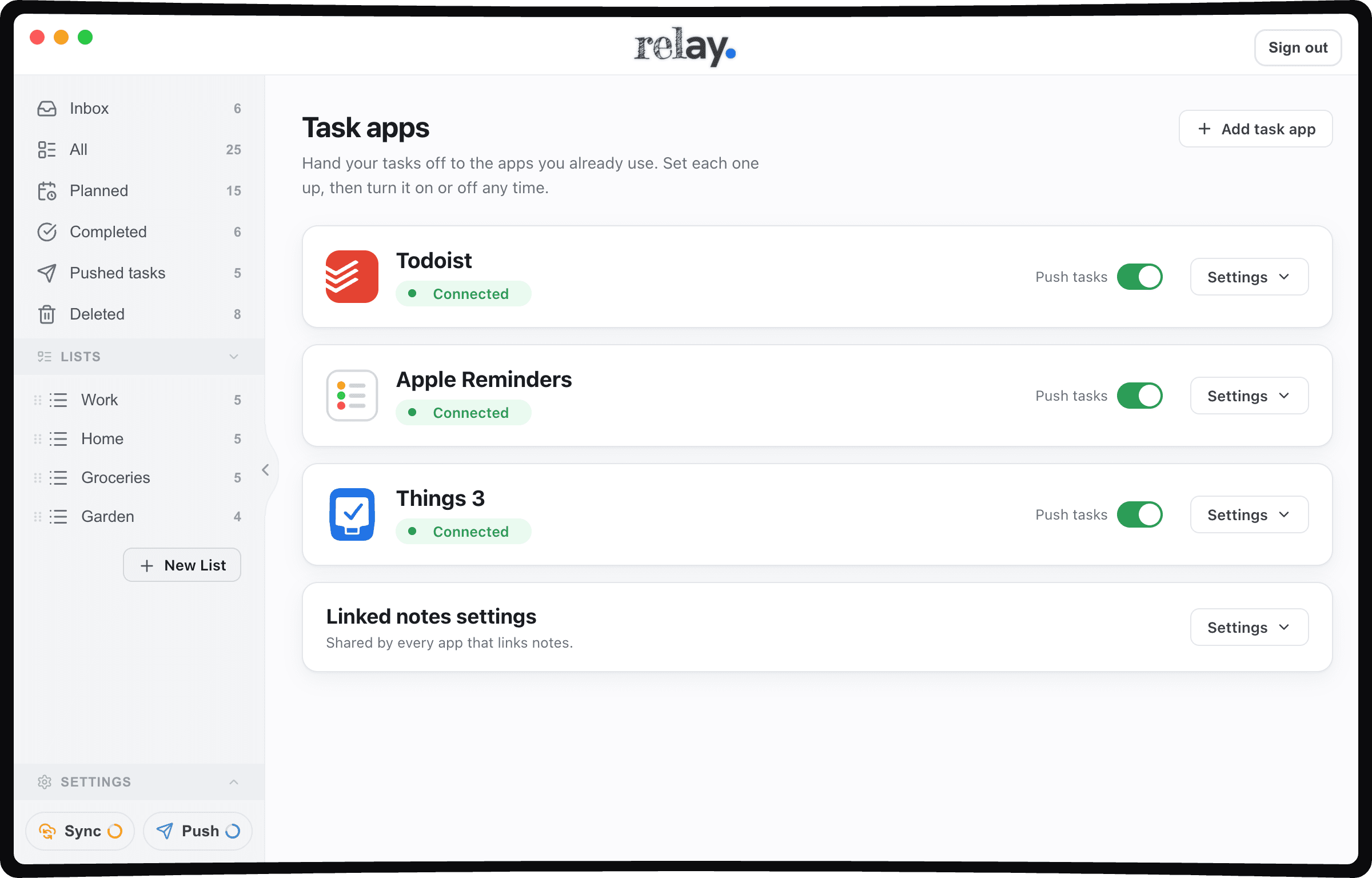
- Works with every app Relay connects to. Todoist, Apple Reminders, Things 3, Google Tasks, TickTick and Asana.
- All six appsTodoist, Apple Reminders, Things 3, Google Tasks, TickTick and Asana — as many at once as you like.
- Handed over onceThe Supernote copy is filed away, and Relay never pushes the same to-do twice.
- Nothing comes backChange a pushed task in your task app and it stays there. Your Supernote is never touched.
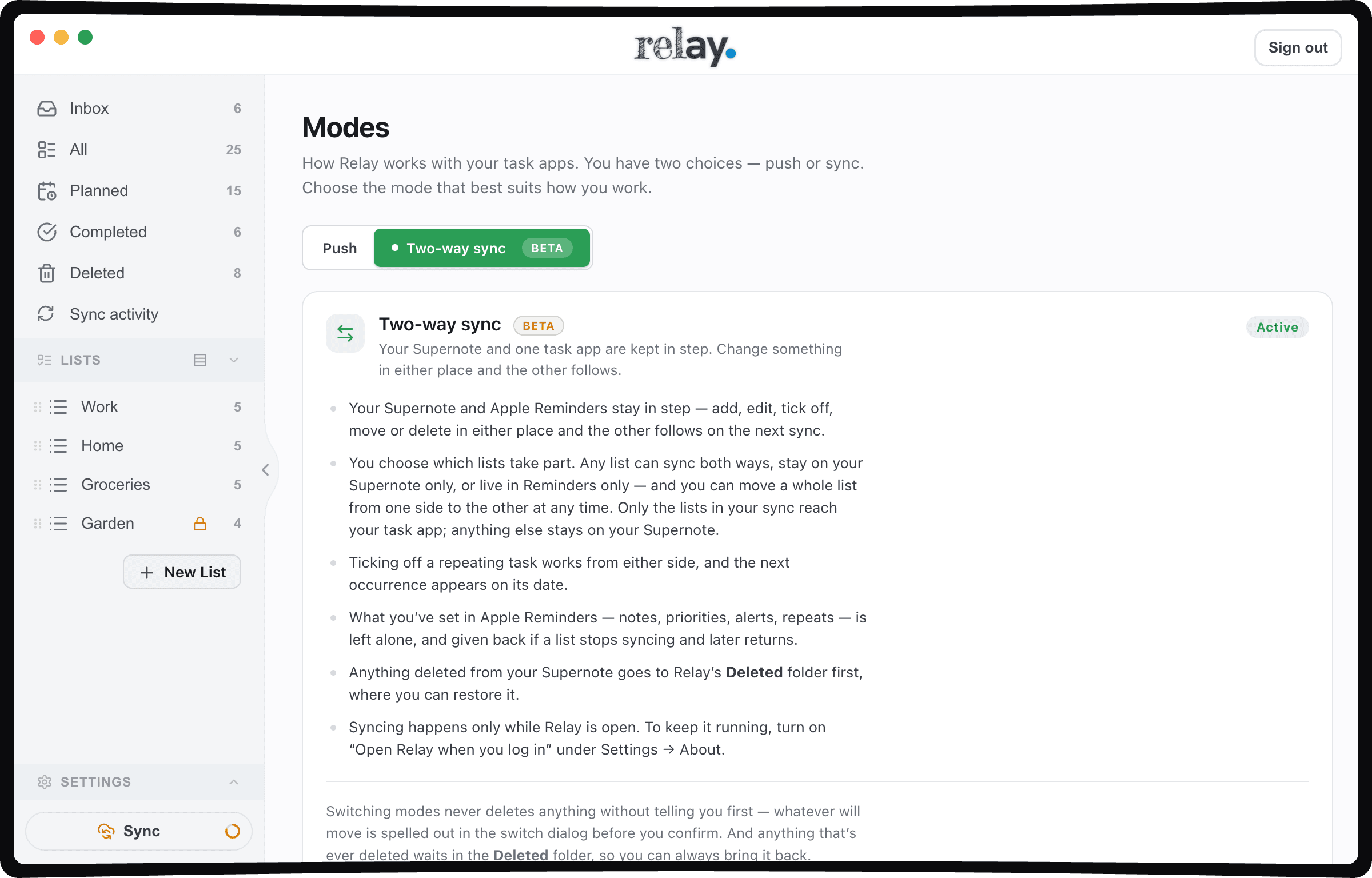
Your Supernote and one task app are kept in step. Change something in either place and the other follows.
kept in step by Relay (both ways)
Two-way sync Beta
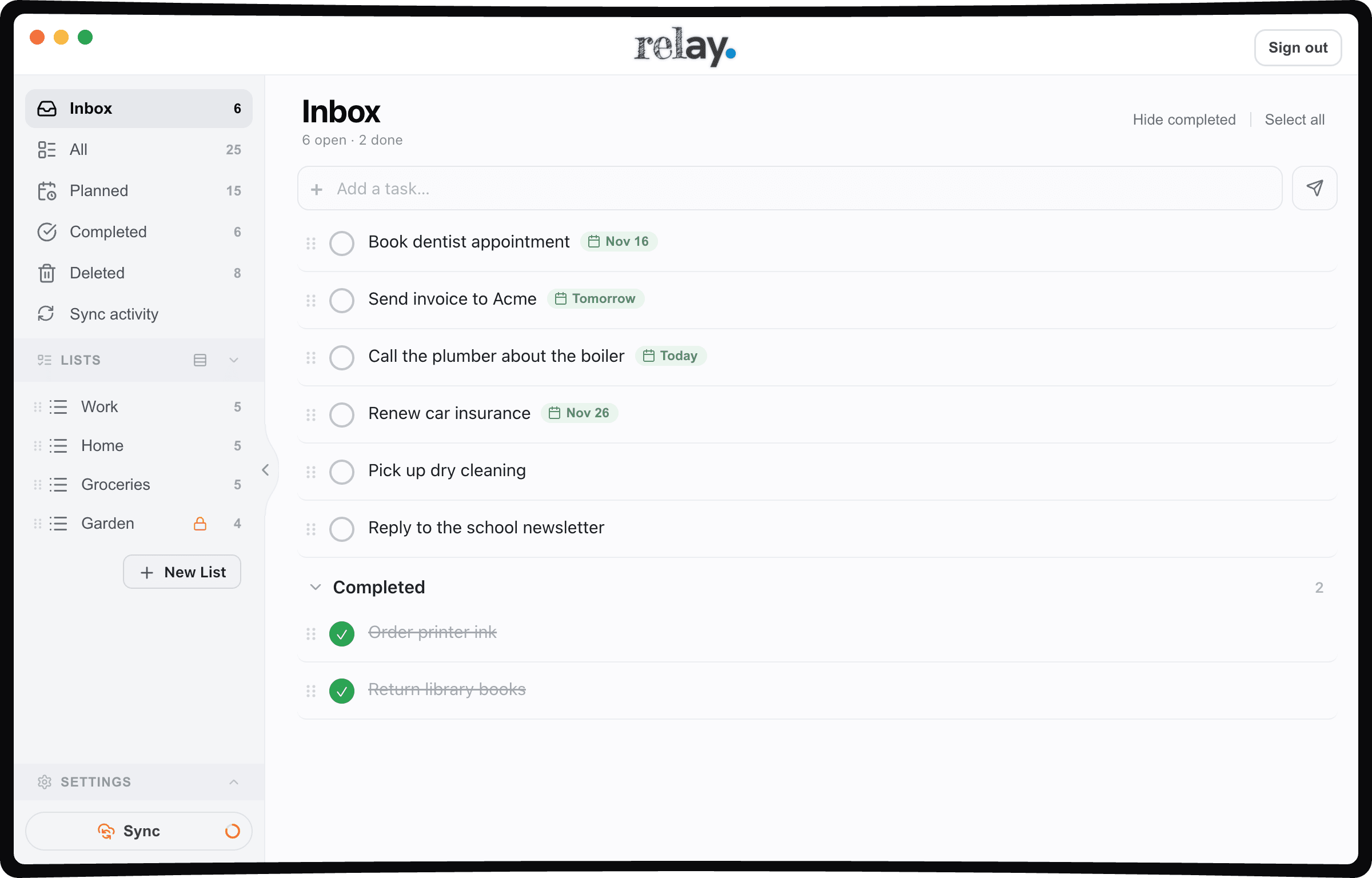
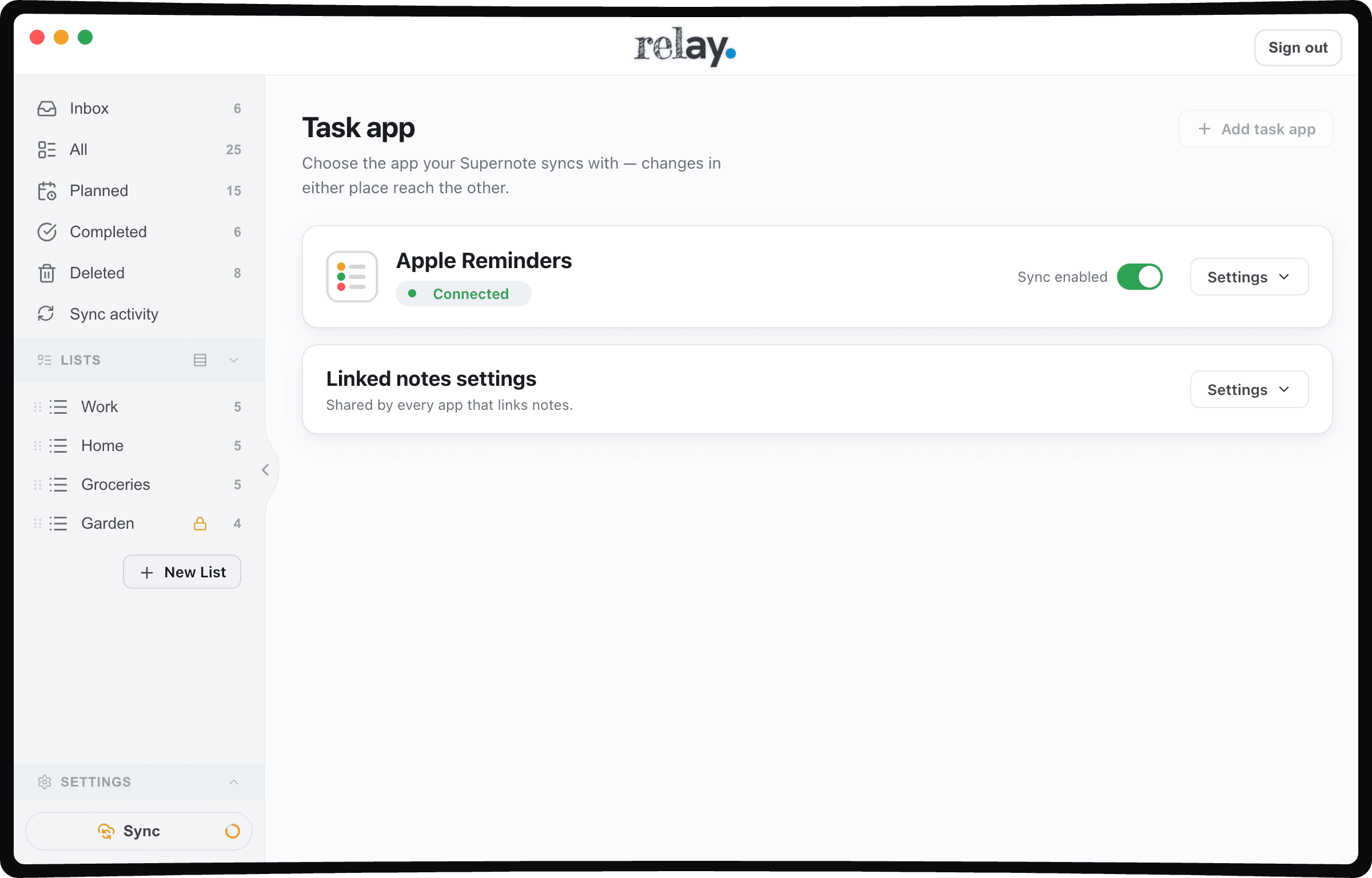
- Your Supernote and Apple Reminders stay in step — add, edit, tick off, move or delete in either place and the other follows on the next sync.
- You choose which lists take part. Any list can sync both ways, stay on your Supernote only, or live in Reminders only — and you can move a whole list from one side to the other at any time. Only the lists in your sync reach your task app; anything else stays on your Supernote.
- Ticking off a repeating task works from either side, and the next occurrence appears on its date.
- What you’ve set in Apple Reminders — notes, priorities, alerts, repeats — is left alone, and given back if a list stops syncing and later returns.
- Anything deleted from your Supernote goes to Relay’s Deleted folder first, where you can restore it.
- Syncing happens only while Relay is open. To keep it running, turn on “Open Relay when you log in” under Settings → About.
- Apple Reminders onlyTwo-way sync works with one task app at a time, and Apple Reminders is the one that supports it.
- One Mac at a timeTwo Macs syncing the same Supernote would fight each other, so two-way sync runs on one.
- Relay has to be openNothing syncs while Relay is closed — “Open Relay when you log in” keeps it running.
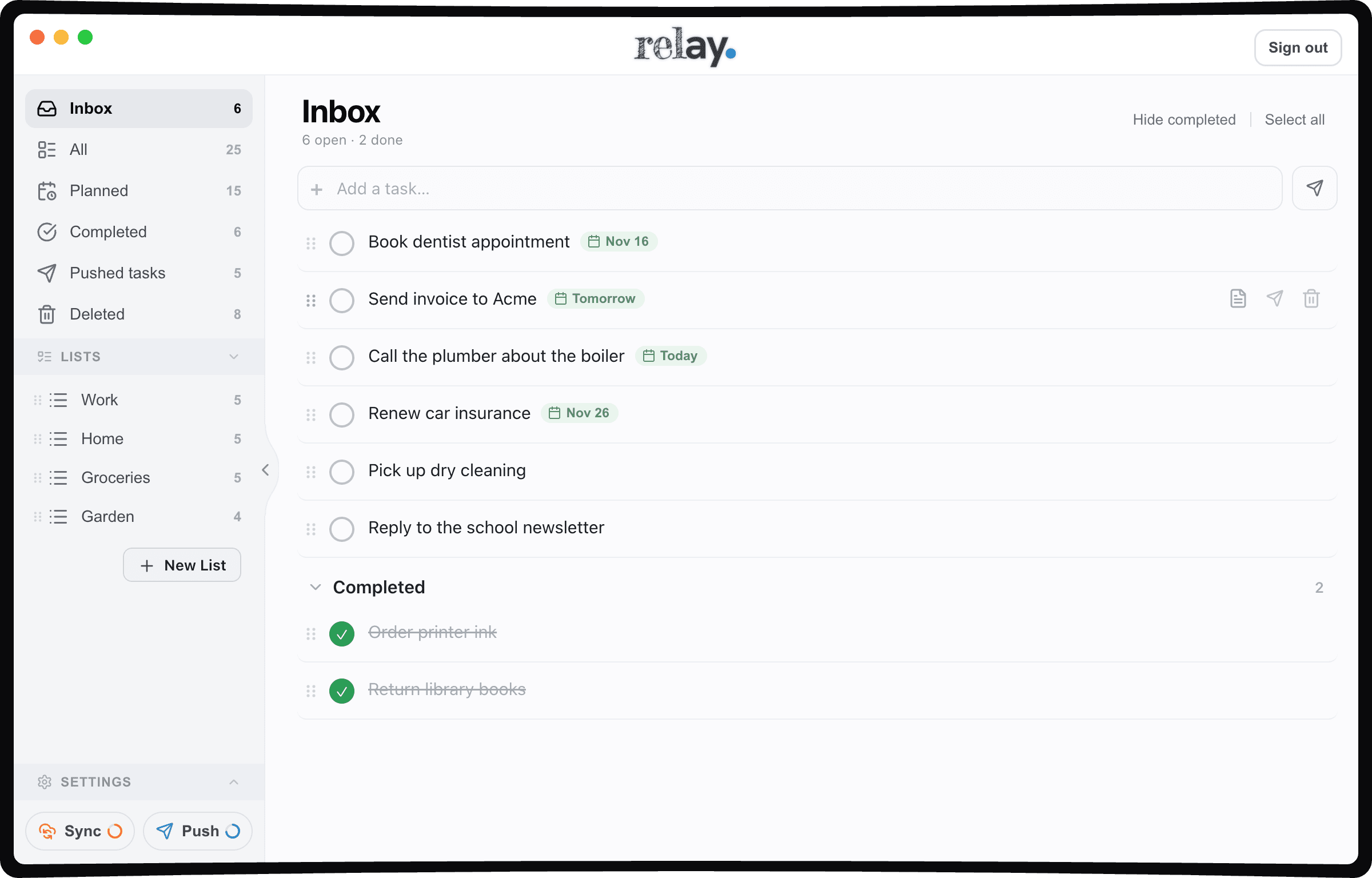
What it looks like
Which should I choose?
Choose Push if…
- your tasks live in Todoist, Things 3, Google Tasks, TickTick or Asana
- you send to-dos to more than one app
- you want your Supernote to be where you capture and your task app to be where you get things done — with nothing in the task app ever changing your Supernote
Choose Two-way sync if…
- you use Apple Reminders and want the same to-dos there and on your Supernote
- you’d like to tick a to-do off wherever you happen to be — on your Supernote, in Relay or in Reminders
- you’re happy to keep to one task app, on one Mac, with Relay open
Neither is the better mode, and you can switch whenever you like.
Which apps work with which mode
Push works with every app Relay connects to. Two-way sync works with one app at a time, and Apple Reminders is the one that supports it.
| Task app | Push | Two-way sync Beta |
|---|---|---|
 Apple Reminders | ||
 Todoist | Push only | |
 Things 3 | Push only | |
 Google Tasks | Push only | |
 TickTick | Push only | |
 Asana | Push only |
See how Relay works with each task appWhich task apps work with two-way sync? Why can’t I choose mine?
What moves where
Two-way syncBetaIn two-way sync, Relay looks after four things about every to-do — its name, its date, whether it’s done, and which list it’s in — plus adding and deleting to-dos and lists. Everything else you set in Apple Reminders is yours, and Relay leaves it alone.
| What changes | Supernote to Apple Reminders | Apple Reminders to Supernote |
|---|---|---|
| New to-dos | Yes | Yes (in lists that take part) |
| The to-do’s title | Yes | Yes |
| Due date | Yes — as an all-day date | Yes — the day only (the Supernote has no time of day) |
| Done / not done | Yes | Yes |
| Which list it’s in | Yes | Yes (between lists that take part) |
| Deleting a to-do | Yes | Yes — the Supernote copy is kept in Relay’s Deleted section |
| Lists: new, renamed, deleted | Yes | Renames and deletions yes; a new Reminders list is offered to you first |
| Link to the handwritten note | Yes — on its own line in the reminder’s notes | Doesn’t travel this way |
| Notes, priority, alerts, repeat, time of day | Doesn’t travel this way | Stay in Reminders, untouched |
| Order of to-dos | No (Apple doesn’t let other apps read or set it) | No |
Switching modes
Switching modes never deletes anything without telling you first — whatever will move is spelled out in the switch dialog before you confirm. And anything that’s ever deleted waits in the Deleted folder, so you can always bring it back.
Switching to two-way sync Beta
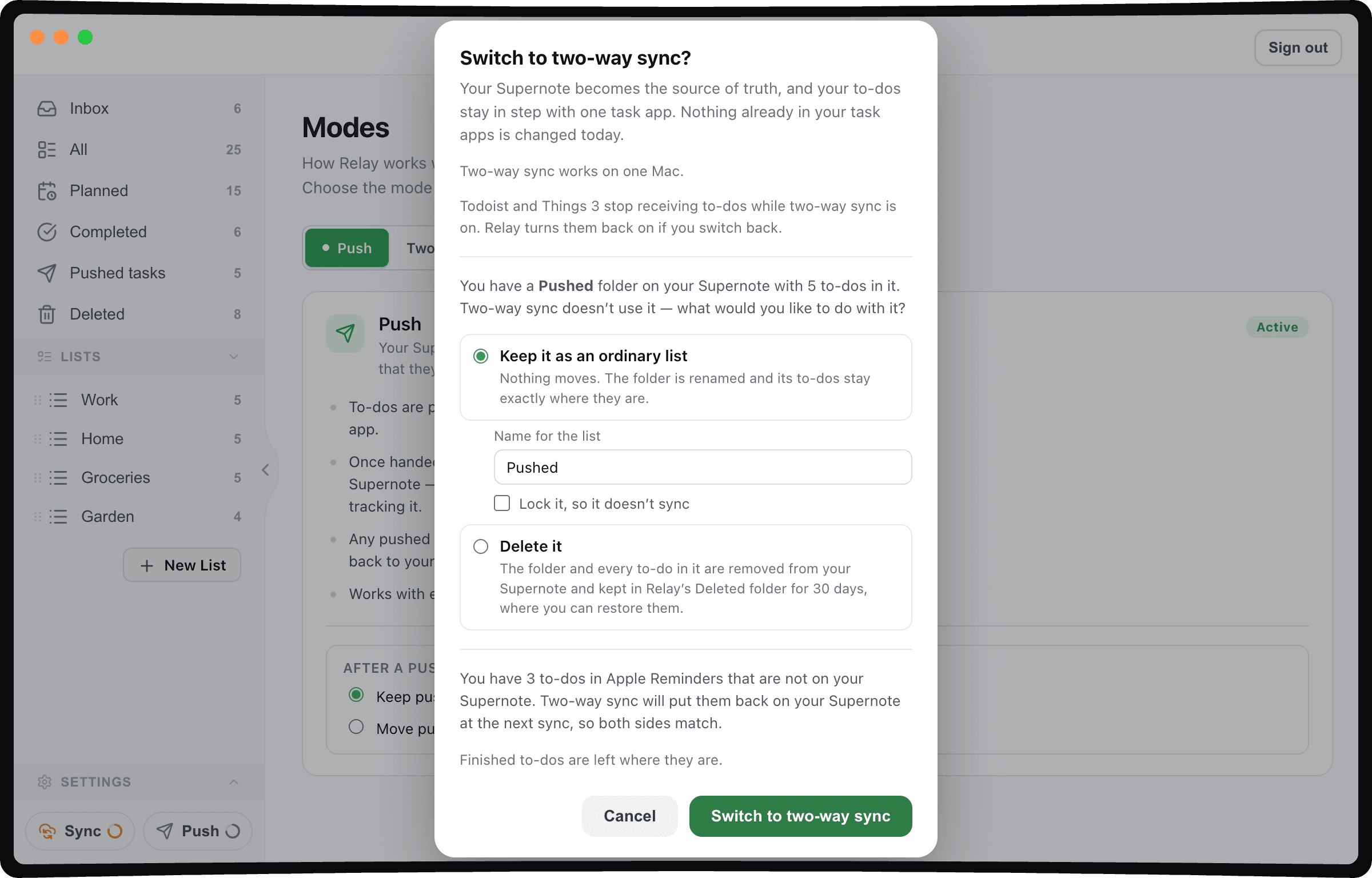
- Open Settings → Modes, choose the Two-way sync tab and click Switch to two-way sync….
- Read the dialog. It tells you that your Supernote becomes the source of truth, and spells out anything that will move: what to do with your “Pushed ✓” folder (keep it as an ordinary list, or delete it — its to-dos wait in Deleted), how many pushed to-dos it will put back on your Supernote, which other task apps will be paused, and which other Macs will be deactivated.
- Confirm. Relay syncs straight away and takes you back to your Inbox. A one-time prompt then offers to add your own Apple Reminders lists to the sync.
Switching back to Push
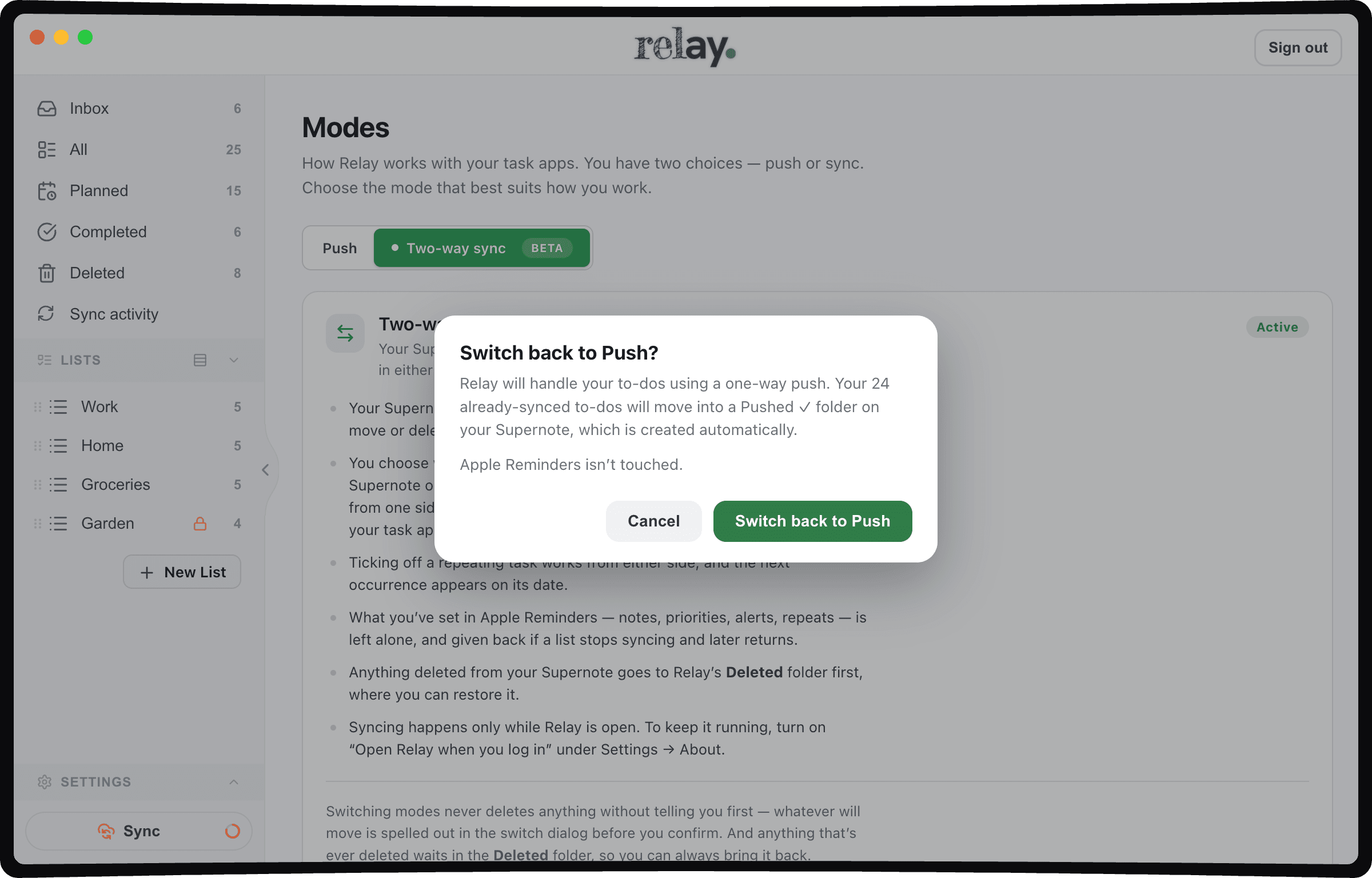
- Open Settings → Modes, choose the Push tab and click Switch back to Push….
- The dialog tells you how many already-synced to-dos will be filed on your Supernote — into a “Pushed ✓” folder or into Deleted, following your “After a push” setting. They’re marked as already pushed, so nothing is sent twice, and Apple Reminders isn’t touched.
- Confirm. Your other task apps start receiving to-dos again, your other Macs can be activated again, and you’re back on your Inbox.
One Mac for two-way sync Beta
Two Macs both two-way syncing the same Supernote account would fight each other, so two-way sync runs on one Mac. Turning it on deactivates Relay on your other Macs (named before you confirm); switching back to Push lets you activate them again. Push mode is unchanged — as many Macs as the licence allows.
If a Mac that was using two-way sync is gone for good (sold, wiped, broken), the activation screen on the new Mac lists your Macs with a Remove button, so you can free it there and then.
Setting up a new Mac while another Mac is using two-way sync
What two-way sync can’t do
Two-way syncBetaTwo-way sync can only work with what Apple lets other apps see, and what your Supernote can hold. Here’s where those edges are.
- Apple Reminders only, one app at a time, one Mac at a time. While two-way sync is on, your other task apps are paused — they come back when you switch back to Push.
- Relay has to be open. Nothing syncs while it’s closed; “Open Relay when you log in” (Settings → About) keeps it running.
- The automatic schedule follows Active hours. Monday to Friday, 08:00–17:30 unless you change it. Outside those hours a sync happens when you press Sync now, when Relay opens, or (if switched on) the moment Reminders changes.
- Changes on the device reach Relay after your Supernote has synced with the Supernote cloud. The Supernote does that itself.
- The catch-up window. If you change the same to-do on your Supernote while it is still downloading a change made elsewhere, the arriving change can land on top of yours. It settles on its own. This is how the Supernote syncs with its own cloud, not Relay.
- What Apple doesn’t let other apps see can’t sync: the order of reminders, sections inside a list, tags, subtasks (nesting), attached images and the URL field.
- Dates are days. The Supernote has no time of day. A time you set in Reminders is left alone, but it doesn’t travel to the Supernote. A reminder that repeats more often than once a day carries its time in its name, in brackets — e.g. “Drink water (21:00)”.
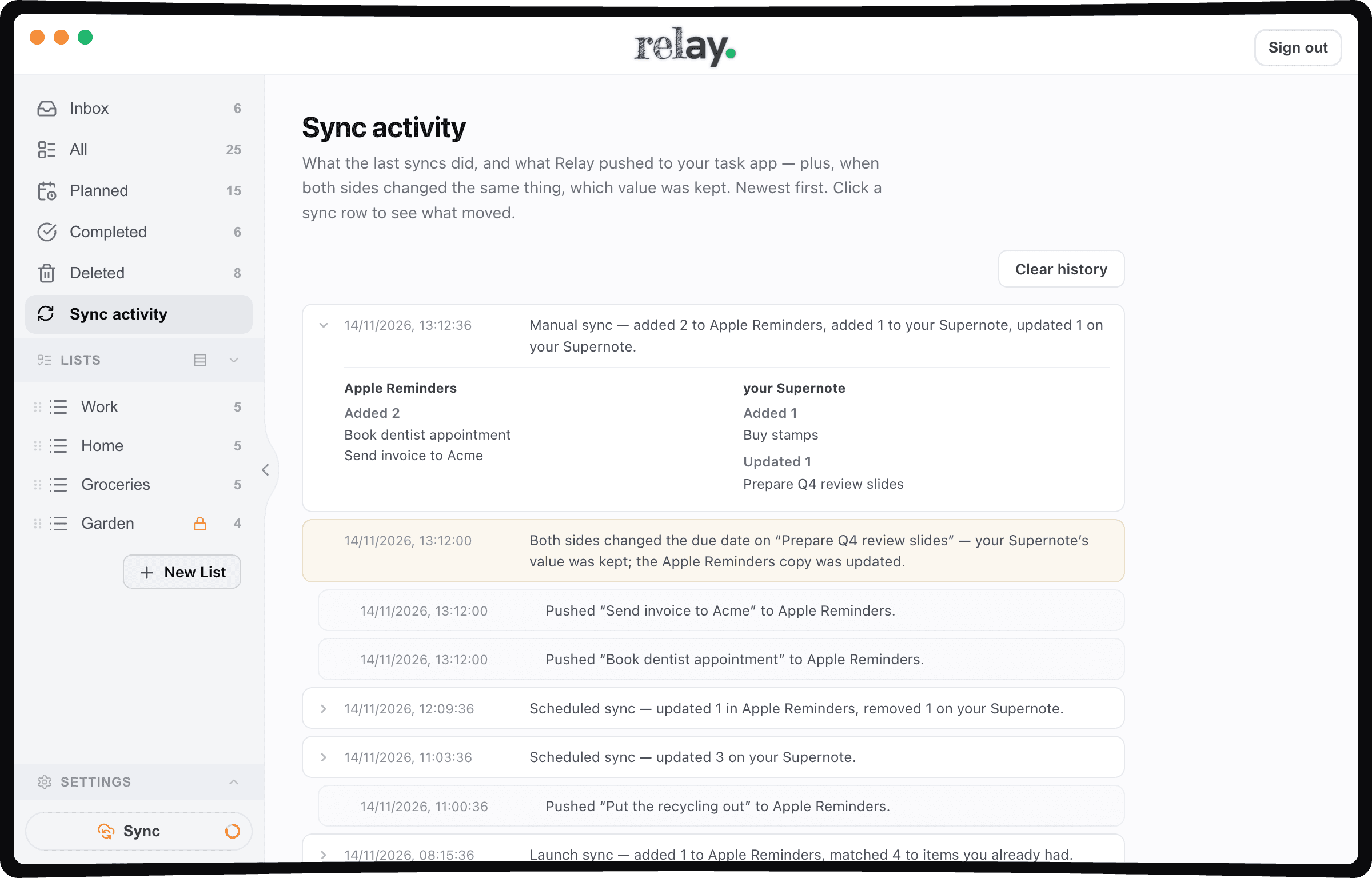
- When both sides change the same thing between syncs, your Supernote’s version wins, and Sync activity records what was replaced. For list names, the last rename wins — except when a list is renamed on both sides with no sync in between, when the Supernote’s name wins (Apple Reminders doesn’t record when a list was renamed).
- Shared Reminders lists: deletions you make reach everyone sharing the list.
- Bringing in a big Reminders list takes a while. New to-dos arrive on the Supernote in batches over several syncs, and there’s no progress bar for this yet.
If I change the same to-do in both places, which change wins?
Questions
The help centre has a whole section on the two modes — from choosing lists to repeating reminders.